[This was first published on 10/5/2006. I'm putting all of the articles I've published on here so that I'll have one place I can look for all of them.]
People often talk about a software project's bus factor -- the number of people on your project that need to get hit by a bus to leave you with no one familiar with your codebase. In the open source world, the disappearance of even one developer can herald the death of your project -- if you don't prepare in advance.
The most important thing you can do to bus-proof your project is to attract a strong developer community for it. Since open source developers usually first get involved in a project as users, you need to attract users for your project. This means that you need to create something that people want to use and then listen carefully to the user feedback -- today's user may turn out to be tomorrow's release manager.
Start by creating something that people want to use. If you create a project to scratch a particular itch, you may attract a few contributors, but unless it's something that people actually use, it will succumb to bit rot after the initial itch is scratched. Interest in something built only for its own sake can only last so long.
You'll usually work on a project that people (namely you) want to use, and your project will attract a community of users and developers, with people fixing patches and making suggestions. If you want to keep these users around, you need to keep your project in good working order. That means vetting bug reports, fixing bugs, and working on new features. Regardless of the technical level of your project's users, odds are that they see your project differently than you do, so it may take a lot of dialog to understand a user's bug report or feature request. It can be a lot of work to translate a user's feedback into something that a developer can make sense of. But listening to your users, fixing bugs that they report, and paying attention to their feature requests will keep them coming back to use your software, and in many cases make them some of your biggest proponents. They'll usually wind up bringing you -- yep, you guessed it -- more users.
Now, to be clear, I'm not advocating that you spend your valuable time fixing every tiny bug and implementing every whimsical feature that a user requests. But before your project has grown to more than 10 or 15 developers, it's usually in your best interest to at least let your users know that they've been heard. Even if your email is only to let them know that you likely won't be implementing their pet feature, you let them know that you're listening by responding to them (and drop their requests into your issue tracker so they won't get lost).
As your project attracts more users, you'll inevitably pick up the odd developer (and believe me, some of them will be odd) as part of the community that you're building around your project. The first you'll usually hear from a potential new developer is in the form of a patch to fix an existing (often trivial) bug -- be it a code bug or a minor documentation fix. Users that show up on a development discussion list with patch in hand merit careful attention, because if you determine that their patch is a good patch and you apply it promptly, you could wind up with the ongoing attention of another project contributor, and attention is the common coin of the open source world. If this new developer is clueful, understands your project and the direction you're taking it, and keeps submitting patches, you'll find yourself wanting to let him just commit their own work. If you offer him commit access to your project as soon as you determine that he'll make a good team member, he'll usually stick around for a while to help you with your project.
Now you've got a project with a thriving user community and a small community of developers. You start to dream of a large castle with your minions bowing before you, paying homage to your greatness as a project leader, making offerings of Amazon wishlist items and PayPal donations.
Stop. Right. There.
Running your project with an iron fist is no way to increase your project's bus factor -- specifically, your bus factor.
Life changes can have a drastic effect on the amount of time that you can put into your project. You might get married or have a child. If you don't have a job, you might get one. You might get hit by a bus (or a meteorite) or contract a terminal disease or, heaven forbid, actually lose interest in your project.
Relinquish control.
Build a community of developers who make decisions by consensus and you'll have a project community that is not only lacking a single human point of failure, but that has the flexibility to lose one or more committers either temporarily or permanently. This kind of community allows developers to take turns leading the project (as much as you can "lead" a project run by consensus) and is remarkably robust as developers depart and return to contribute as their time allows. This is the true hallmark of a long-lived, productive open source project.
There are many other things that you can do to make your open source project successful, but by maintaining interest, paying attention to your users, and building a strong community, you're well on your way to developing a project that will grow for years to come. Best of all, you can stop panicking every time you see an oncoming bus on the way to lunch.
Author's note: Thanks to Karl Fogel and C. Michael Pilato for reading drafts of this article.
Showing posts with label tips. Show all posts
Showing posts with label tips. Show all posts
May 22, 2007


May 8, 2007
How to Collect Money for a Dinner With More Than Eight People Without Going Broke
Have you ever found yourself as the (perhaps unwilling) ringleader in a group outing? Did the check for the group somehow wind up in your lap and people are suddenly looking to you for guidance in how much to pay? Was the meal with a bunch of people who ordered wildly varying meals (and, more importantly, drinks)?
Wilfredo Sánchez and myself, as the unofficial "Cruise Directors" of the Apache Software Foundation, have found ourselves in this role year after year (voluntarily), and having done this at multiple conferences, have learned some valuable lessons about collecting money after the fact for a group outing.
Time and time again, I've seen some poor sap stuck in the "check master" role come up way short of the amount of money owed, and out of fear, wind up eating $100 or more of the group's tab. Typically this happens not out of malicious intent, but out of lack of organization and ignorance on the part of the participants. Should you ever find yourself in the role of this poor soul, here are some tips to make sure that the venue gets its money--and your servers get adequately tipped--without going broke yourself.
Wilfredo Sánchez and myself, as the unofficial "Cruise Directors" of the Apache Software Foundation, have found ourselves in this role year after year (voluntarily), and having done this at multiple conferences, have learned some valuable lessons about collecting money after the fact for a group outing.
Time and time again, I've seen some poor sap stuck in the "check master" role come up way short of the amount of money owed, and out of fear, wind up eating $100 or more of the group's tab. Typically this happens not out of malicious intent, but out of lack of organization and ignorance on the part of the participants. Should you ever find yourself in the role of this poor soul, here are some tips to make sure that the venue gets its money--and your servers get adequately tipped--without going broke yourself.
- Split the bill evenly: Your best bet for saving your sanity is for everyone to pay "Alla Romana", which means that the amount each person pays is the total cost of the evening (meal + tips) divided by the number of attendees. If someone pulls out a calculator and tries to calculate precise tax and tip for their meal, you have my permission to throw rocks at them (or at least stale dinner rolls). One exception for this is if a few patrons drank a lions share of the bar bill, it's completely fair to ask them to pony up a bit more to cover their part.
- Tip your servers well: If your servers have done a bang-up job of serving your party, tip at least 20%, and make sure you add this into the cost before splitting up the bill. Make doubly sure that the tip isn't already included before slapping another 20% on. But even if the tip is already included, it doesn't mean that you can't tip a little extra if your server went above and beyond the call of duty--remember that it's really hard to serve a large group of people well.
- Round up: After adding the bill and the tip together, divide by the number of people, and round up, not down. If the bill comes to $17.48 per person, round up to $20. If the bill comes to $21.24 per person, round up to $23, or even $25. Odds are that most people are just going to have Yuppie Food Stamps (twenty-dollar bills), so making any change that's not a multiple of 20 is going to require some effort. After everyone has been paid and tipped, you can attempt to get change and give people a few bucks back. If the remaining amount is less than the number of people in whole dollars, consider just adding it to the tip.
- Don't mix up your money: Whatever you do, do not start stuffing people's money into your wallet or, even worse, just pull out the contents of your wallet to use as a bank for making change. This is a fine way to make people wonder if you've turned this into a profit-making opportunity for yourself or, more likely, to wind up spending more of you own money than you should. If at all possible, pay your part first, and pay it in smaller bills that you can use to make change. But basically: keep track of the exact amount of money you've collected, and keep that amount visible at all times.
- Don't mix up your credit: While you can gather all the cash and pay the balance with your credit card, I don't advise this if at all possible--some people might wonder if you're actually paying or if they're collectively paying your bill. I don't care how many miles you get on your credit card, just don't do it.
- Don't be the loan officer: If you're collecting money, avoid loaning anyone money at all costs. This is one more thing to keep track of, and it's a fine role for someone's other friend to fulfill while you handle collecting for the check.
- Be careful making change: If the cost per person is $15, don't let people just start throwing twenties at you and then try to figure out who owes what to whom. If possible, start collecting from people who have exact change and then start making change for others who don't have change.
- Don't fight for the money: You're always going to have one or two people who had nothing but an appetizer and a glass of water and steadfastly refuses to put up a penny more than the menu price of their meal. Fine. Don't argue--they either a cheapskate or they genuinely can't afford to shell out more money. If it's the former, making a big stink is going to make you at least one enemy. If it's the latter, making a big stink can potentially make you many enemies. Basically, there's no way of winning here, so you can use some of the extra cash you came up with when you rounded up (you did round up, didn't you?).
- Don't play credit card poker: But more importantly than that, don't let individuals start paying with credit cards. Beg them to go to an ATM or to borrow money from the guy next to them, but nothing says "screw you" to a waiter more than a check folder with half a dozen credit cards in it.
Mar 7, 2007
The Top Ten Subversion Tips for CVS Users
This was published on ONLamp on 08/19/2004. The original should be here. I'm putting all of the articles I've recently published on here so that I'll have one place I can look for all of them
The primary mission of the Subversion project is to "provide a compelling replacement for CVS." One of its secondary missions is to provide a user interface similar to CVS's, so that switching to Subversion will be painless for CVS users.
So, if you learn Subversion's new features, you're ready to start using it, right?
Almost. Although the interfaces are similar, there are some important differences. Subversion has some features that CVS either lacks or offers differently; plus, there's the need to unlearn some of the bad habits that CVS has instilled in you.
With that, I give you the top ten Subversion tips for CVS users. The first six tips address bad CVS habits; the last four address good Subversion habits.
1. Use
In CVS, if you want to see what has changed in your working copy, odds are that you run
With Subversion, if you want to find out what you've modified, you run
Note that
Now, by default,
The first column remains the same, but the second shows the working revision of the item. The third and fourth columns show the revision in which the item last changed, and who changed it.
If you want to know which files will be updated the next time you run
You can see that the files that will be updated are marked with a
* Unless you pass CVS the -n switch.
** CVS has a
I've seen people spend hours in meetings working out the directory structure and file placement of a project they are preparing to create in their CVS repository--and anyone who's ever tried to move a directory or a file in CVS knows why: CVS doesn't allow you to move anything around in the repository!* With Subversion, you can move files and directories with wild abandon:
Now
You can even move files and directories on the server by using URLs:
That will immediately move
* Unless, of course, you shell into your repository and start moving and copying things around by hand, but this totally hoses your repository history.
In CVS, you have
You've created a tag of your main line of development (referred to as
In Subversion, tags and branches are just copied paths in the repository tree. By convention, tags live under
CVS has to modify each individual file that you tag in the repository; depending on the size of your repository, this could take a very long time. Subversion, on the other hand, needs only to copy a single directory node, which not only is really fast but also takes very little space in your repository--no matter how many files are involved in the branch or tag. The Subversion community calls 'em "cheap copies" for good reason!
You're not limited to tagging all files in the same revision in Subversion: If you need to make a "mixed-revision" tag or branch, you can always copy a working copy to a URL:
See Branching and Merging for an extensive description of how to branch and tag.
If you've ever made changes to a file in your CVS working copy that you wanted to undo without committing, you probably did something like this to rectify the situation:
And that, aside from requiring two separate operations, required a trip to the server to get the unblemished file (which, by the way, may not be the original file you were working on but rather a newer version). Subversion, however, stores a pristine copy of each file in the
That comes in especially handy if you don't have a Net connection at the time.
By default, CVS translates line endings (from CR [Unix] to CRLF [Windows] and back) and expands keywords (like $Id$) in your files. This is very handy until you commit a binary file to your CVS repository and CVS, in a fit of helpfulness, turns your file into tapioca pudding.
Subversion will never ever ever do anything to your data unless you ask it to.
Let's say that together now:
SUBVERSION WILL NEVER EVER EVER DO ANYTHING TO YOUR DATA UNLESS YOU ASK IT TO.
You can add any binary file to your Subversion repository and not have to do anything special to have Subversion not destroy your file. However, if you add a text file (a .java file or .c file, for example), you may want Subversion to automatically handle end-of-line translation for you. This is done using Subversion properties.
In this case, you will set the
and then commit your change.
You can teach your Subversion client to add certain properties to your files automatically--see the section on Automatic Properties and their configuration for more information.
Subversion's
Part of the reason Subversion's log command gives more useful and compact data is that its output is based on an atomic Subversion commit rather than a collection of files that may or may not be part of the same commit. (Keep in mind that CVS has no actual concept of a commit grouping.) So Subversion is able to show you a much more concise view of your repository's log data.
For example:
Each log entry shows you the revision number of the entry, the author, the date, the number of lines in the log entry (to aid in parsing
In the above examples, you might have noticed that we're not passing any specific files or directories (called
And now on to a small gotcha: If you commit a change to a file and immediately run
See http://svnbook.red-bean.com/svnbook/ch03s06.html#svn-ch-3-sect-5.1 and http://svnbook.red-bean.com/svnbook/re15.html for more information on using
Suppose you have a working copy of /trunk and discover that the change you made in revision 303, which changed
Use
For more information, see Undoing Changes.
* That is, restore the latest revision of your repository to its previous state; Subversion will still have the "bad" commit in the repository. Being a version control system, Subversion's job is to remember everything you've ever committed to it.
If you delete a file from your Subversion repository and wish to "resurrect" it into the latest revision of your repository, the easiest way is to
For more details, see Resurrecting deleted items.
In CVS, if you have a working copy for your project and are ready to begin work on a branch, you would pass the branch name as the revision to which you wished to update. Because Subversion treats tags and branches as regular paths in the repository, you can't just
For more details, see Switching a working copy.
If your Subversion repository is being served up through the Apache HTTP Server (that is, you access it via a URL beginning with
First, you can point any web browser to your Subversion repository and navigate your way through the latest revision of your repository.
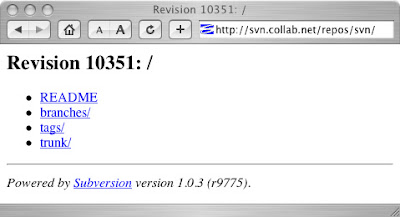
Second, if you're using an operating system that knows how to talk to DAV shares, you can mount your Subversion repository (read-only) on your desktop:
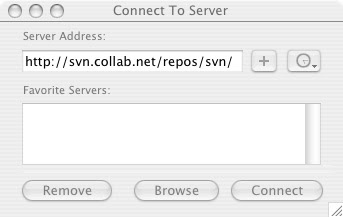
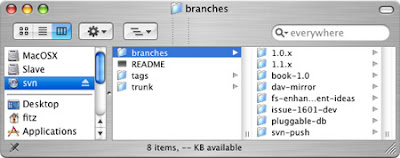
While this is a convenient way to see the contents of your repository, it's also very useful for sharing files with non-Subversion users.
Copyright © 2004 Brian W. Fitzpatrick, Ben Collins-Sussman, C. Michael Pilato. This article is distributed under the Creative Commons Attribution License (v 2.0).
The primary mission of the Subversion project is to "provide a compelling replacement for CVS." One of its secondary missions is to provide a user interface similar to CVS's, so that switching to Subversion will be painless for CVS users.
So, if you learn Subversion's new features, you're ready to start using it, right?
Almost. Although the interfaces are similar, there are some important differences. Subversion has some features that CVS either lacks or offers differently; plus, there's the need to unlearn some of the bad habits that CVS has instilled in you.
With that, I give you the top ten Subversion tips for CVS users. The first six tips address bad CVS habits; the last four address good Subversion habits.
1. Use status to find out your ... status
In CVS, if you want to see what has changed in your working copy, odds are that you run
cvs update. This command shows you the status of the files in your working copy, but it also updates your CVS working copy to the latest revision of the repository*. This not only requires a round-trip to the server, but also may change files in your working copy. Finding out what you've changed locally is different from finding out what has changed in the repository, but CVS mixes the two.**With Subversion, if you want to find out what you've modified, you run
svn status. This command compares the files in your working copy with those in the Subversion administrative areas (those pesky .svn directories), thus avoiding the necessity of a network round-trip:
  $ svn status
  D      fish.c
  A      shrimp.c
  M      anemone.c
Note that
fish.c is scheduled for deletion, shrimp.c is scheduled for addition, and anemone.c has been modified.Now, by default,
svn status shows only the files that are interesting (like those that have been added, modified, or deleted). If you want to see information about all the files in your working copy, pass the --verbose switch:
  $ svn status --verbose
                  44        23    sally     README
                  44        30    sally     INSTALL
                  44        35    harry     trout.c
  D               44        19    ira       fish.c
  A                0         ?     ?        shrimp.c
  M                0         ?     ?        anemone.c
                  44        36    harry     things/rocks.txt
The first column remains the same, but the second shows the working revision of the item. The third and fourth columns show the revision in which the item last changed, and who changed it.
If you want to know which files will be updated the next time you run
svn update, use the --show-updates switch to svn status:
  $ svn status --show-updates --verbose
         *        44        23    sally     README
                  44        30    sally     INSTALL
         *        44        35    harry     trout.c
  D               44        19    ira       fish.c
  A                0         ?     ?        shrimp.c
  M      *        44        32    sally     anemone.c
                  44        36    harry     things/rocks.txt
You can see that the files that will be updated are marked with a
*.* Unless you pass CVS the -n switch.
** CVS has a
status command, but it's not very useful.2. Remember, you can move things around
I've seen people spend hours in meetings working out the directory structure and file placement of a project they are preparing to create in their CVS repository--and anyone who's ever tried to move a directory or a file in CVS knows why: CVS doesn't allow you to move anything around in the repository!* With Subversion, you can move files and directories with wild abandon:
  $ svn move foo.c bar.c
  A         bar.c
  D         foo.c
Now
bar.c has been scheduled to be added and foo.c has been scheduled for deletion. (This is how Subversion represents a move.svn commit will send your changes to the server.)You can even move files and directories on the server by using URLs:
  $ svn move -m "Move a file" http://svn.red-bean.com/repos/foo.c \
                              http://svn.red-bean.com/repos/bar.c
That will immediately move
foo.c to bar.c on the server. * Unless, of course, you shell into your repository and start moving and copying things around by hand, but this totally hoses your repository history.
3. Tag and branch by copying
In CVS, you have
cvs tag, cvs tag -b, cvs rtag, and cvs rtag -b for creating tags and branches. In Subversion, everything is done as a copy:
  $ svn copy -m "Tag rc1 rel." http://svn.red-bean.com/repos/trunk \
                               http://svn.red-bean.com/repos/tags/1.0rc1
You've created a tag of your main line of development (referred to as
trunk in Subversion terms). If you want to create a branch instead, copy the trunk line of development into the branches directory--it's just that easy. And in Subversion, tagging and branching are fast too. In Subversion, tags and branches are just copied paths in the repository tree. By convention, tags live under
/tags and branches live under /branches.CVS has to modify each individual file that you tag in the repository; depending on the size of your repository, this could take a very long time. Subversion, on the other hand, needs only to copy a single directory node, which not only is really fast but also takes very little space in your repository--no matter how many files are involved in the branch or tag. The Subversion community calls 'em "cheap copies" for good reason!
You're not limited to tagging all files in the same revision in Subversion: If you need to make a "mixed-revision" tag or branch, you can always copy a working copy to a URL:
$ svn copy -m "Mixed branch." . http://svn.red-bean.com/repos/branch/1.2-mixed
See Branching and Merging for an extensive description of how to branch and tag.
4. "Revert" instead of "delete and update"
If you've ever made changes to a file in your CVS working copy that you wanted to undo without committing, you probably did something like this to rectify the situation:
  $ rm I-made-a-boo-boo.txt
  $ cvs up I-made-a-boo-boo.txt
  U  I-made-a-boo-boo.txt
And that, aside from requiring two separate operations, required a trip to the server to get the unblemished file (which, by the way, may not be the original file you were working on but rather a newer version). Subversion, however, stores a pristine copy of each file in the
.svn directory, so you can just do this:
  $ svn revert I-made-a-boo-boo.txt
  Reverted 'I-made-a-boo-boo.txt'
That comes in especially handy if you don't have a Net connection at the time.
5. Don't fear your version control system
By default, CVS translates line endings (from CR [Unix] to CRLF [Windows] and back) and expands keywords (like $Id$) in your files. This is very handy until you commit a binary file to your CVS repository and CVS, in a fit of helpfulness, turns your file into tapioca pudding.
Subversion will never ever ever do anything to your data unless you ask it to.
Let's say that together now:
SUBVERSION WILL NEVER EVER EVER DO ANYTHING TO YOUR DATA UNLESS YOU ASK IT TO.
You can add any binary file to your Subversion repository and not have to do anything special to have Subversion not destroy your file. However, if you add a text file (a .java file or .c file, for example), you may want Subversion to automatically handle end-of-line translation for you. This is done using Subversion properties.
In this case, you will set the
svn:eol-style property to native:
$ svn propset svn:eol-style native halibut.c
and then commit your change.
You can teach your Subversion client to add certain properties to your files automatically--see the section on Automatic Properties and their configuration for more information.
6. Log, log, log your log
Subversion's
log command is so much more powerful than CVS log that it merits a mention.Part of the reason Subversion's log command gives more useful and compact data is that its output is based on an atomic Subversion commit rather than a collection of files that may or may not be part of the same commit. (Keep in mind that CVS has no actual concept of a commit grouping.) So Subversion is able to show you a much more concise view of your repository's log data.
For example:
  $ svn log
  ------------------------------------------------------------------------
  r3 | sally | Mon, 15 Jul 2002 18:03:46 -0500 | 1 line

  Added include lines and corrected # of cheese slices.
  ------------------------------------------------------------------------
  r2 | harry | Mon, 15 Jul 2002 17:47:57 -0500 | 1 line

  Outline sandwich fixins.
  ------------------------------------------------------------------------
  r1 | sally | Mon, 15 Jul 2002 17:40:08 -0500 | 1 line

  Initial import
  ------------------------------------------------------------------------
Each log entry shows you the revision number of the entry, the author, the date, the number of lines in the log entry (to aid in parsing
svn log's output), and then the log message itself. If you wish to see the paths that changed in your log output, pass the --verbose flag: $ svn log --verbose
------------------------------------------------------------------------
r3 | sally | Mon, 15 Jul 2002 18:03:46 -0500 | 1 line
Changed paths:
M /trunk/sandwich.txt
Added include lines and corrected # of cheese slices.
------------------------------------------------------------------------
r2 | harry | Mon, 15 Jul 2002 17:47:57 -0500 | 1 line
Changed paths:
M /trunk/sandwich.txt
Outline sandwich fixins.
------------------------------------------------------------------------
r1 | sally | Mon, 15 Jul 2002 17:40:08 -0500 | 1 line
Changed paths:
A /trunk/sandwich.txt
Initial import
------------------------------------------------------------------------
In the above examples, you might have noticed that we're not passing any specific files or directories (called
targets) to the log command. If you run svn log without specifying any targets, Subversion assumes that you're referring to your current working directory. Subversion then uses a starting revision of 1, and the working revision of your current working directory as the ending revision. (You can find out what this working revision is by using svn status -v, as we mentioned earlier.) And now on to a small gotcha: If you commit a change to a file and immediately run
svn log, you won't see the log message for your most recent commit. This is because the "working revision" of your working directory has not been updated (committing a file does not automatically update your working directory or any other files). If you run svn update and then svn log, you'll see the "missing" log message. See http://svnbook.red-bean.com/svnbook/ch03s06.html#svn-ch-3-sect-5.1 and http://svnbook.red-bean.com/svnbook/re15.html for more information on using
svn log.7. Quickly undo a mistaken commit
Suppose you have a working copy of /trunk and discover that the change you made in revision 303, which changed
oyster.c, is completely wrong--it never should have been committed. You can use svn merge to "undo" the change in your working copy*, and then commit the local modification to the repository. All you need to do is specify a reverse difference using svn merge:
  $ svn merge -r 303:302 http://svn.example.com/repos/calc/trunk
  U  oyster.c
Use
svn diff to verify that the change is correct, and then commit that to the repository.For more information, see Undoing Changes.
* That is, restore the latest revision of your repository to its previous state; Subversion will still have the "bad" commit in the repository. Being a version control system, Subversion's job is to remember everything you've ever committed to it.
8. Resurrect deleted items
If you delete a file from your Subversion repository and wish to "resurrect" it into the latest revision of your repository, the easiest way is to
svn copy it from a revision before it was deleted into your working copy. Use svn log -v to find the revision where the file was deleted, and then do your copy:
 $ svn copy --revision 807 \
              http://svn.red-bean.com/repos/trunk/perch.c ./perch.c
For more details, see Resurrecting deleted items.
9. Switch to a branch without checking out a new working copy
In CVS, if you have a working copy for your project and are ready to begin work on a branch, you would pass the branch name as the revision to which you wished to update. Because Subversion treats tags and branches as regular paths in the repository, you can't just
svn update your working copy to the branch name in question. Enter the svn switch command.svn switch updates your working copy to mirror a new tree in the repository--say, a branch tree instead of the trunk tree. This is the Subversion way to move a working copy to a new branch.
  $ svn switch http://svn.red-bean.com/repos/branches/vendors-with-fix .
  U  myproj/foo.txt
  U  myproj/bar.txt
  U  myproj/baz.c
  U  myproj/qux.c
  Updated to revision 31.
For more details, see Switching a working copy.
10. Browse or even mount your repository
If your Subversion repository is being served up through the Apache HTTP Server (that is, you access it via a URL beginning with
http), Subversion gives you a couple of extremely convenient freebies:First, you can point any web browser to your Subversion repository and navigate your way through the latest revision of your repository.

Second, if you're using an operating system that knows how to talk to DAV shares, you can mount your Subversion repository (read-only) on your desktop:


While this is a convenient way to see the contents of your repository, it's also very useful for sharing files with non-Subversion users.
Copyright © 2004 Brian W. Fitzpatrick, Ben Collins-Sussman, C. Michael Pilato. This article is distributed under the Creative Commons Attribution License (v 2.0).
Subscribe to:
Posts (Atom)